The Horizon layout (◎ in the top bar, or Shift+O) gives the chart the whole window: top bar, drawing tools, watchlist and bottom panel become translucent islands over the chart. You choose it once and it stays saved; Shift+O goes back to the classic layout. Between 641 and 900 px of width the normal layout always applies. On a phone there is a compact version: the chart takes the whole screen, the bottom bar becomes a floating glass island and the editors panel a card above it; the glowing line at the bottom hides or shows the two islands, while the ◎ button is in the “⋯” menu.
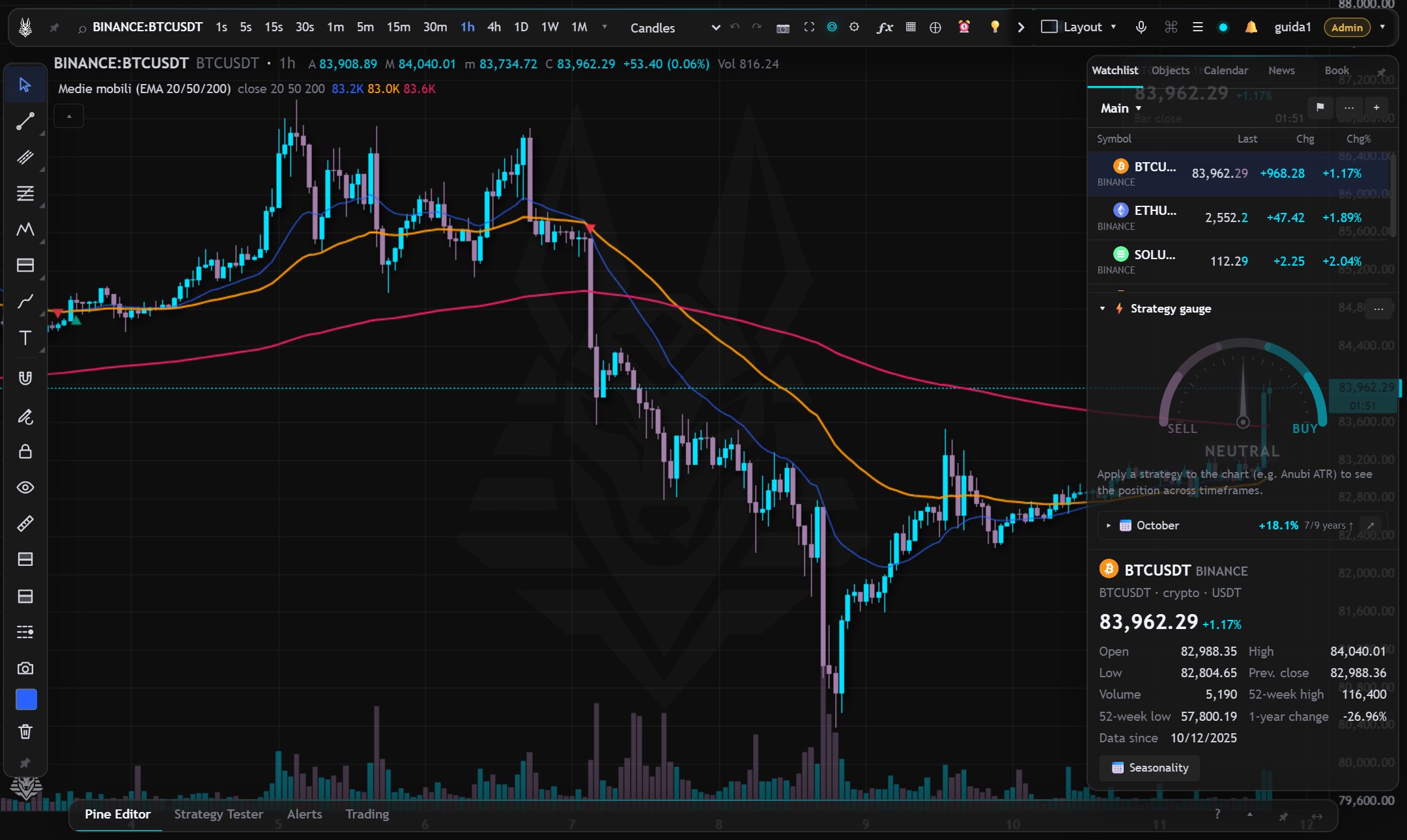
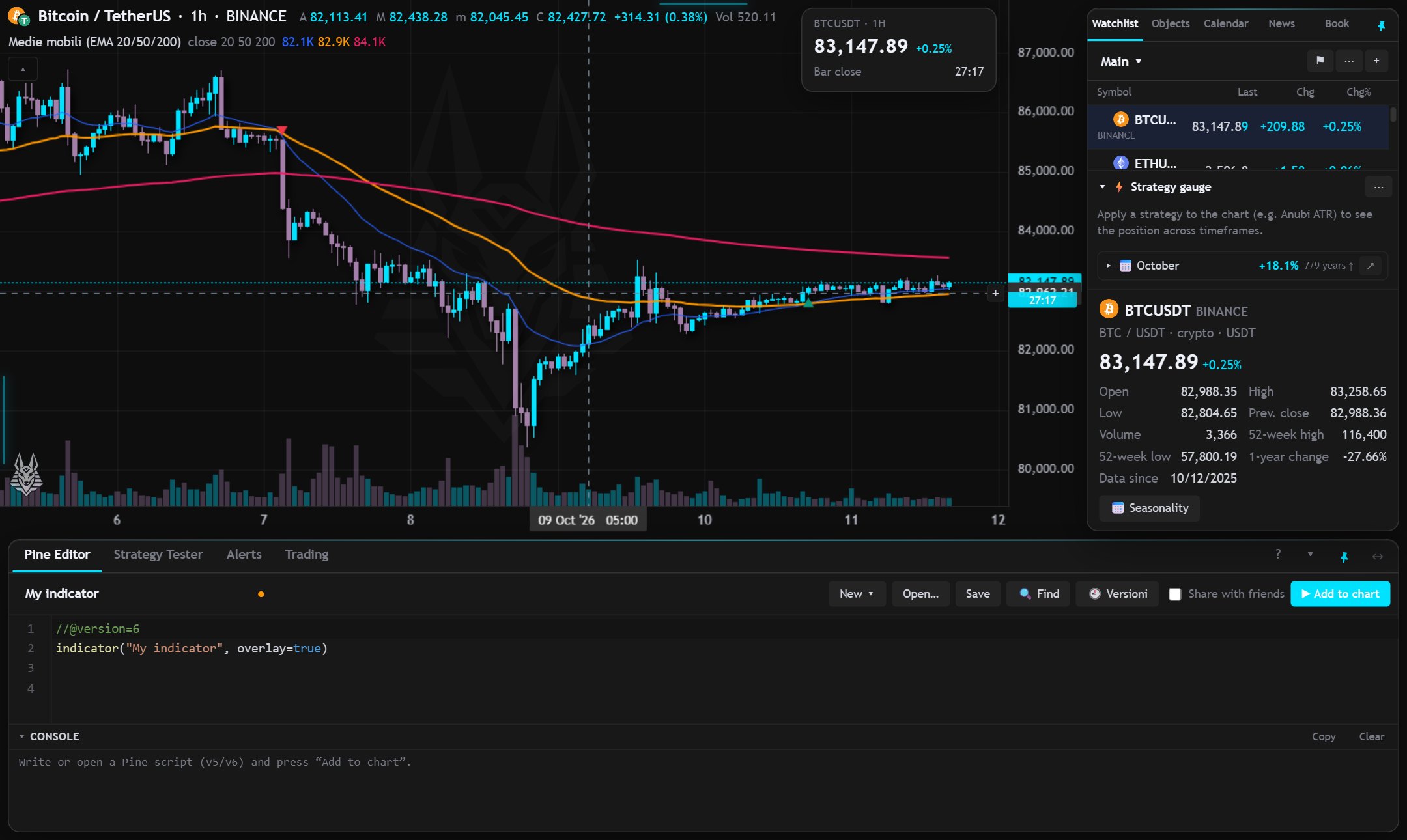
- The islands retreat on their own shortly after the mouse leaves them (not while you are typing in the editor or a menu is open), and immediately on a click on an empty spot of the chart.
- To bring them back, hold the mouse for a moment on the edge of the window (passing over it, for example toward the date scale, doesn't open them): the bar at the top, the tools on the left, the watchlist on the right, the editor at the bottom. A glowing thread on the edge shows where a retreated island is; a click on the edge opens it right away.
- The pin 📌 on each island keeps it always visible.
- With several charts (grid) each chart has its own bar and tools as islands inside its own frame; watchlist and editor remain window islands.
- At the top right, next to the price scale, the data panel: price, daily change, time to bar close, open paper position with its P/L, perpetual funding and alerts near the price. A click makes it compact; right-click → “Close” (or Shift+I, which reopens it).
Phrase command bar
In the (Ctrl+K) you can type a phrase; the first line says what it will do and Enter runs it:
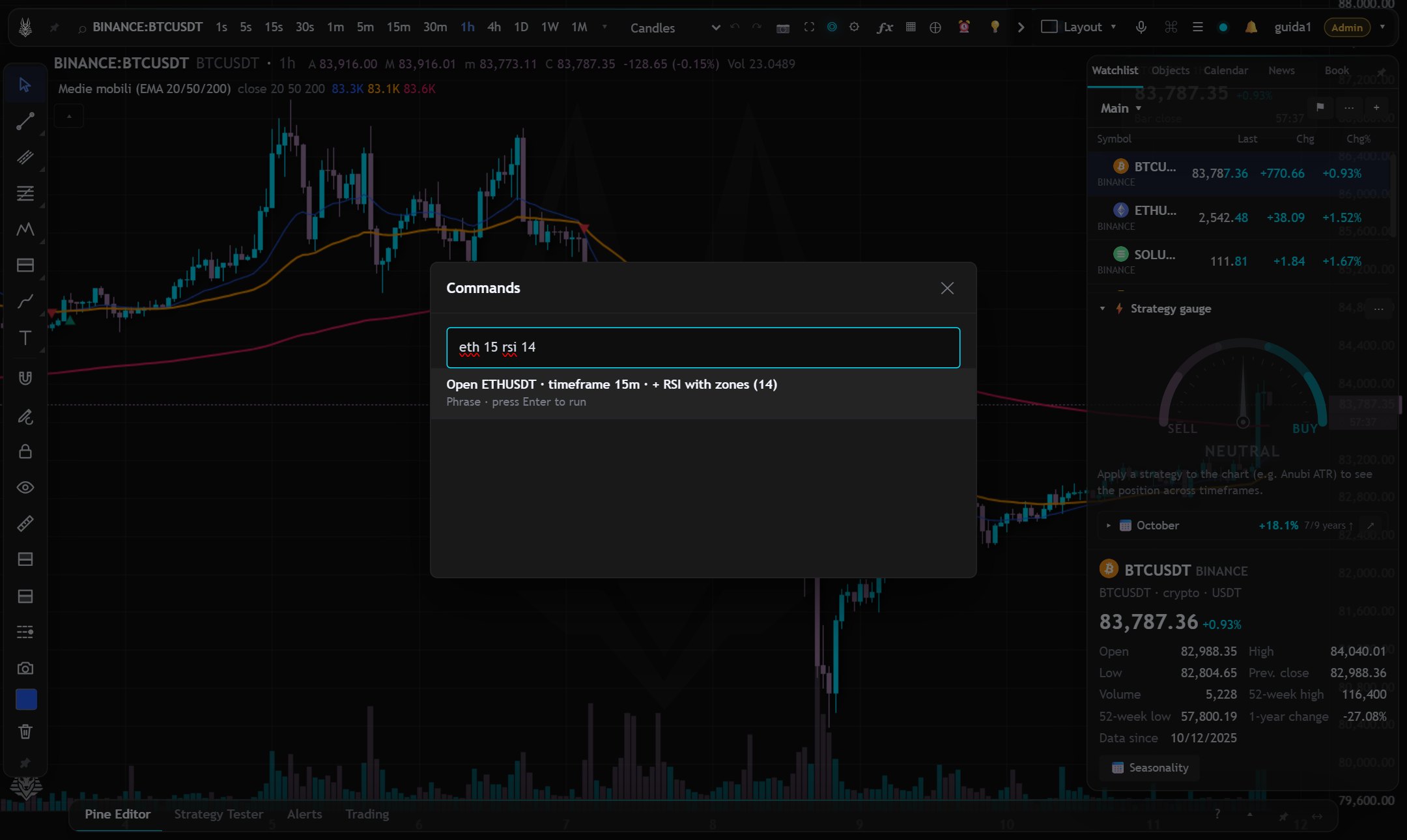
| eth 15 rsi 14 | opens ETH, 15-minute timeframe, adds the 14-period RSI |
| 4h ema 50 ema 200 | 4-hour timeframe and two exponential moving averages |
| alert 85,000 | creates an alert at that price |
| buy 0.1 at 84200 | opens the paper order (limit or stop depending on the price) |
The symbol is looked up as in the symbol search, preferring the same source as the open chart (with BINANCE:BTCUSDT, “eth” is BINANCE:ETHUSDT); you can also write it in full, e.g. BYBIT:SOLUSDT.P. Timeframe: a number is minutes, then 30s, 4h, 1d, w, 1M. Indicators: rsi, macd, bb, ema/sma/wma, vwap, supertrend, stoch, atr, adx, ichimoku, volume and others; the numbers after the name are their parameters. Prices in English format (84200.5, 85,000) or Italian format (85.000, 0,5).
The same phrases can also be spoken: voice commands. With the interface in English you can say them in English too.
Quick keys
- Space / Shift+Space: next / previous symbol in the watchlist.
- Shift+B / Shift+S: paper buy / sell order at the crosshair price (limit or stop depending on the side; at market if the mouse isn't on the chart).
- Alt+A: alert at the crosshair price.